


When it comes to trading, every pip, timestamp, and price point matters. Whether you’re double-checking a winning trade, investigating a loss, or disputing an unexpected result, being able to verify your trades on IQ Option is a critical part of your trading routine.
IQ Option provides transparent tools that make trade verification fast and accessible. This guide walks you through exactly how to view all essential trade details — open and close prices, execution time, profit/loss, and even historical quotes. You’ll learn how to track and validate every transaction in just a few taps or clicks, whether on desktop or mobile.
Why Should You Verify Trades?
Checking your trades isn’t just about curiosity — it’s about control. Whether you’re scalping, swing trading, or holding positions longer-term, even small inaccuracies in execution can impact your overall profitability.
Regular trade verification helps you detect errors, refine your timing, and gain confidence in your platform. It’s also a habit of disciplined traders who want full clarity on their performance.
Verifying trades allows you to:
- Confirm accuracy and fairness of executed trades: This ensures the trades were executed exactly as you intended, at correct market prices, and at precise times, minimizing any risk of error or discrepancy.
- Ensure transparency and trustworthiness of the platform: Regular verification helps establish trust in IQ Option by providing evidence of accurate, transparent trade execution.
- Keep track of your trading history and performance: Accurate record-keeping allows you to evaluate and refine your strategies effectively, helping you learn from past trades to improve future decisions.
- Quickly resolve discrepancies, should they arise: If inconsistencies or issues occur, having detailed verification readily available allows swift investigation and resolution, minimizing disruption to your trading activities.
How to Verify Trades on IQ Option
Follow these steps to verify your trades on IQ Option:
Step 1: Log into Your IQ Option Account
Start by logging into your IQ Option account. Ensure you’re using your registered email address and password.
Step 2: Access Your Trade History
Once logged in, navigate to the “Trading History” section. Here, you’ll find your closed positions clearly listed.
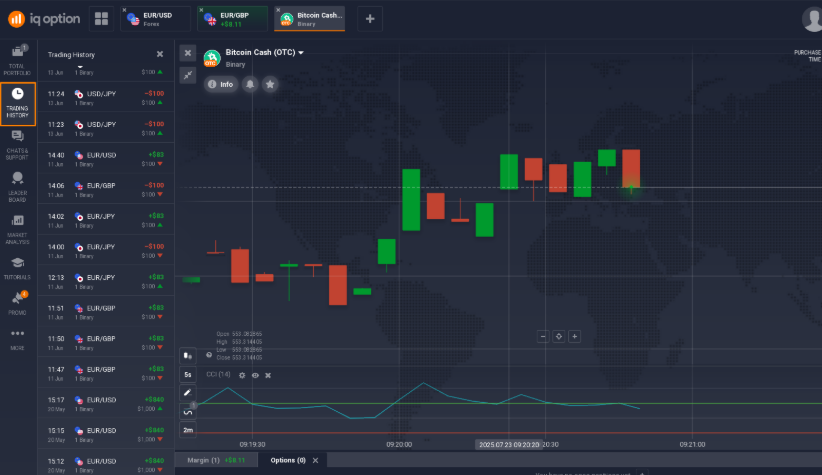
Feel free to filter your trades by instrument or view them all in historical order.
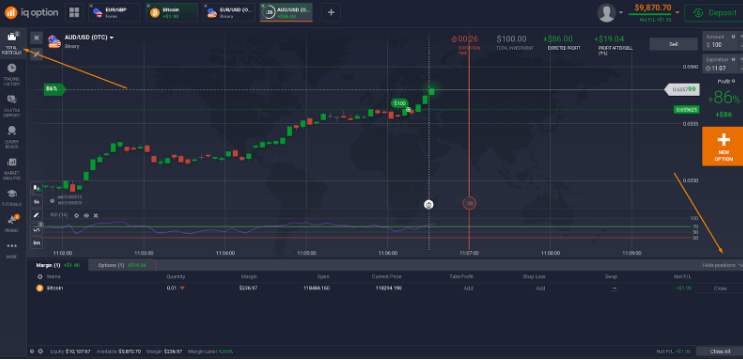
If you need to access your active trades, either go to the “Total Portfolio” section or click “Show Positions” in the bottom right corner of the traderoom.
Step 3: Select the Trade You Want to Verify
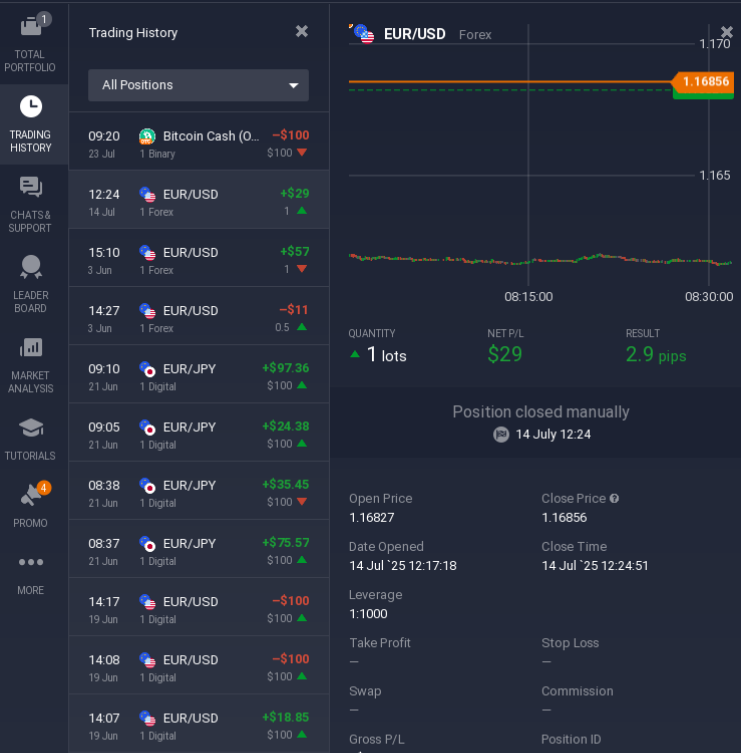
When you click on a closed deal, the following detailed information will be displayed:
- Asset name and type
- Trade direction (Buy/Sell)
- Quantity and leverage
- Net profit/loss and result in pips
- Open and close price
- Date and exact timestamps of trade opening and closing
- Trade closure method (manual or automatic)
- Gross profit/loss
- Position ID for further verification if needed
Step 4: Confirm Trade Details
Carefully check the following key points to verify:
- Execution price: Matches your expected entry/exit price.
- Timing: Confirm the trade opened and closed at the intended times.
- Profit/Loss calculation: Double-check accuracy to avoid discrepancies.
If something seems off — for example, your trade closed too early or the price differs significantly from what you saw on the chart—it’s a signal to dig deeper. Sudden slippage, execution delays, or misaligned timestamps can point to technical issues or incorrect trade setup. In such cases, verifying the details helps you identify what happened and, if necessary, escalate the issue to support.
Additional Verification: Trade Confirmations via Email
IQ Option also sends automatic trade confirmations to your registered email, providing an extra layer of verification.
- Check your inbox for trade confirmation emails immediately after closing a trade.
- Compare details from your email confirmation with those shown in the platform.
How to Check Trades on Mobile App
If you’re using the IQ Option mobile app, checking your trades is just as simple:
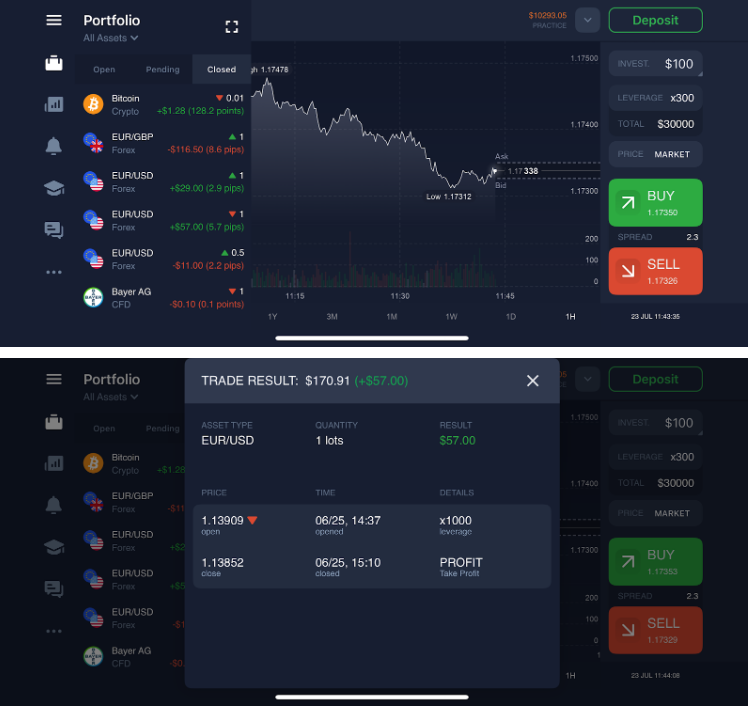
- Open the app and tap on the Portfolio icon (a little suitcase at the upper left).
- Select the appropriate tab: Active, Pending, or Closed.
- Tap on the asset you’re interested in to view detailed information, including:
- Open and close prices
- Trade direction
- Profit/loss
- Leverage
- Time of execution and more
This feature allows you to verify trades even when you’re away from your desktop, so you can stay in control of your trading anytime, anywhere.
Historical Quotes: What Are They And Why Verify Them?
Historical quotes show the prices of currency pairs and other financial instruments at different points in the past.
They allow traders to review past market conditions, verify the prices at which trades were executed, and provide information for testing new strategies or applying technical analysis.
How to Verify Historical Quotes for Options
Historical quotes are crucial, especially for options traders, as they reflect past asset prices and help validate your trades.
Please note that the tick-by-tick quotes displayed in this section are relevant only for option contracts, so this section contains only information about trades executed on this trading instrument.
What’s Tick-By-Tick quotes?
These quotes ensure your trading experience is fast and precise by showing each individual price movement or “tick.” A single candle on a chart may contain thousands of ticks, making it challenging to see each individual tick. The detailed tick history can always be reviewed in the Quotes History.
Tick-by-tick quotes are only available for the past 7 days. If you would like to receive data for a longer period, please contact Support.
Step 1: Navigate to IQ Option’s Historical Quotes Page
You can access quotes when clicking on the specific asset in the Trading History tab. Alternatively, visit the IQ Option Historical Quotes page.
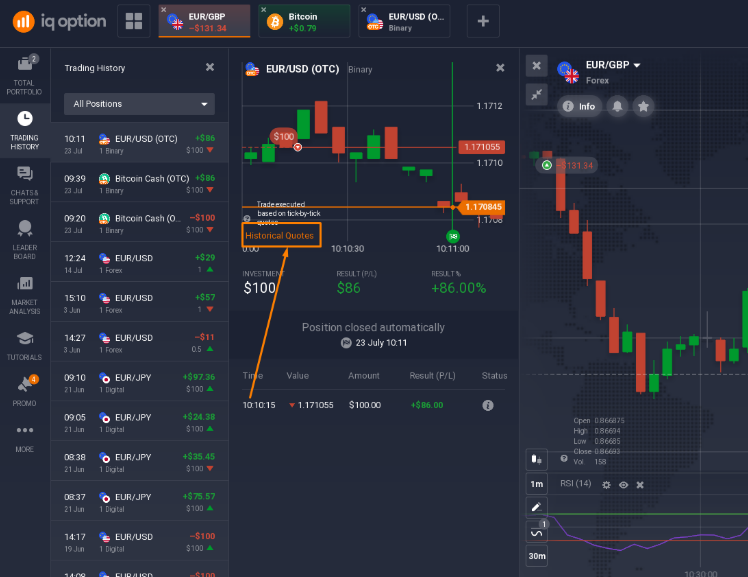
Step 2: Choose the Asset and Date
- Select the asset involved in your trade (EUR/USD in the example below).
- Enter the date and exact time of your trade.
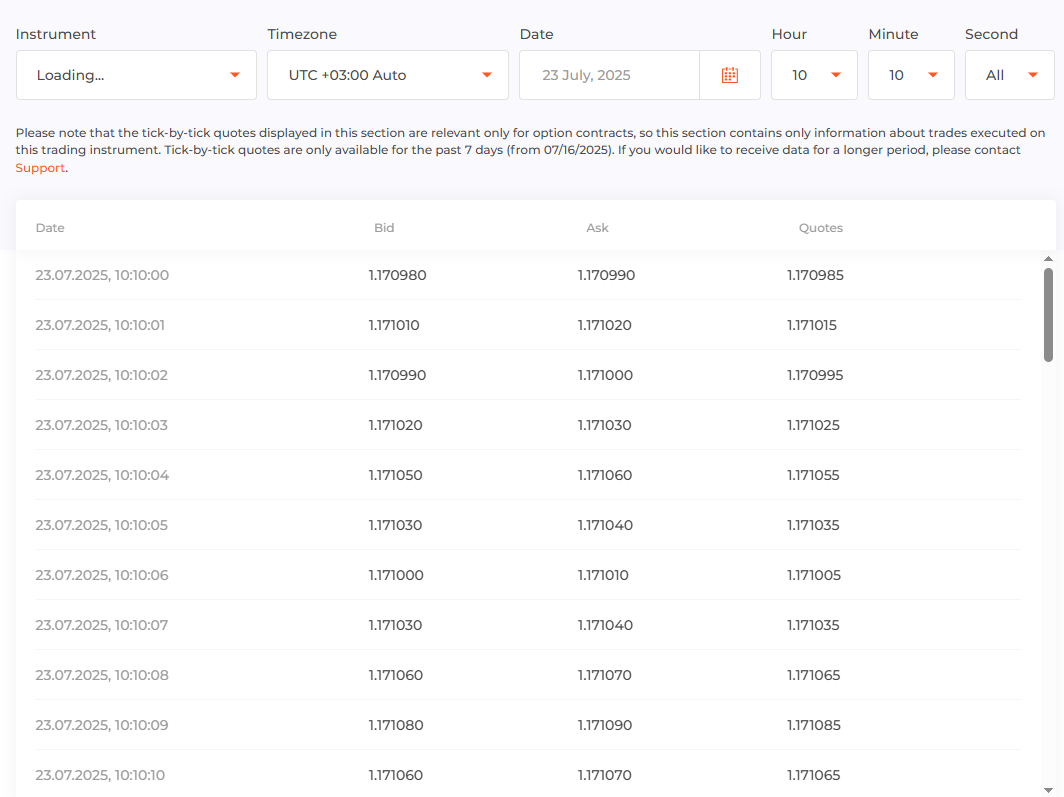
Note that the quotes for the last 30 minutes are not displayed.
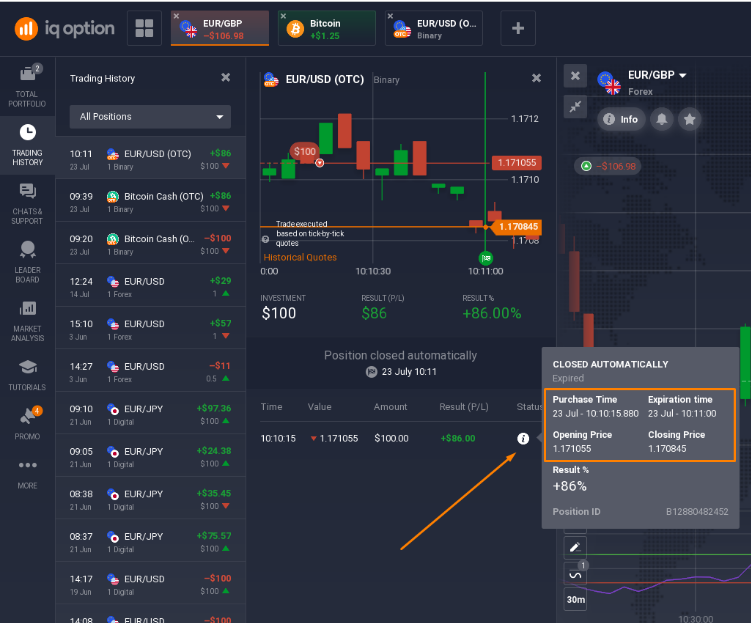
Step 3: Verify the Historical Price
Go back to the ‘Trading History’ section and click on your asset to confirm the historical quote matches your trade’s opening and closing prices. This ensures your trade is executed at accurate market prices.
Troubleshooting Common Issues
If discrepancies arise, consider these steps:
- Refresh your browser or app to ensure updated data.
- Clear cache and cookies if data appears outdated or incorrect.
- Update the IQ Option app or use a different browser to rule out compatibility issues.
- Check your internet connection to ensure there are no connectivity issues affecting data accuracy.
- Log out and log back in to refresh your account session.
- Verify your device’s time and date settings to match your local time zone accurately.
- Check for any platform maintenance or announcements that might affect trade execution details.
- Contact IQ Option’s customer support via live chat or email if you continue facing issues. Provide trade details and relevant screenshots for quicker resolution.
Understanding the Importance of Trade Verification
Regular trade verification helps you clearly understand exactly what happens with your trades. In simple words:
- It ensures you’re aware of exactly how and when your trades happened, helping prevent any confusion.
- It helps you check that the trading platform is working correctly and fairly.
- Keeping track of your trades allows you to learn from your experiences, improving your future decisions and strategy.
- If you ever notice something unusual or incorrect, you can quickly resolve the issue because you have detailed information available.
Frequently Asked Questions (FAQs)
How long does IQ Option store trade history?
IQ Option retains your detailed trade history indefinitely, allowing easy reference at any point.
Can I export my IQ Option trade history?
Currently, IQ Option doesn’t offer direct export functionality, but you can manually screenshot or document your trade details.
Is verifying trades necessary for all traders?
While not mandatory, regularly verifying trades is recommended for transparency and security.
How does IQ Option calculate historical quotes?
IQ Option calculates historical quotes using the simple formula: (Bid + Ask) * 0.5.
What if my historical quotes do not match my trade execution prices?
If you find discrepancies, verify that you selected the correct asset and exact trade timestamps. If the issue persists, contact IQ Option support with detailed information and screenshots.
What information should I provide to support when reporting discrepancies?
Provide your account ID, detailed trade information, timestamps, and clear screenshots of the issue for quick resolution.
Conclusion
Verifying trades on IQ Option ensures accuracy and transparency in your trading activity. It allows you to maintain detailed control over your executed trades, quickly resolve discrepancies, and provides solid evidence if disputes arise. On top of that, consistent verification helps you track your performance effectively and improve your strategy and technical analysis. Get a habit of tracking your trades — IQ Option conveniently stores all your trades’ data in your traderoom.